Log in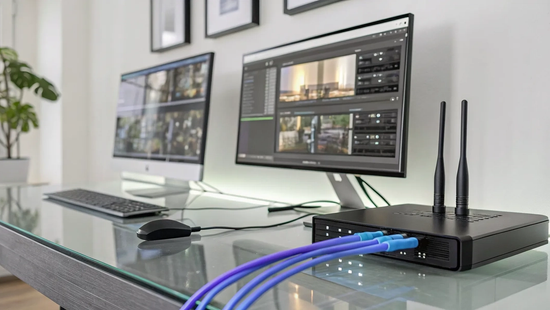
Let's cut through the noise. Many internet providers boast about massive download speeds, but for a streamer, that’s only half the story. When you're broadcasting on Twitch, your upload speed is what truly matters. It’s the pipeline that sends your gameplay out to your viewers. If that pipeline is too narrow, you get dropped frames and a blurry picture, no matter how fast your downloads are. Understanding the ideal internet speed for streaming Twitch 1080p means focusing on upload performance. We’ll explain why symmetrical speeds are a game-changer and what to look for in a connection.
Key Takeaways
- Focus on Upload Speed, Not Just Download: For a high-quality 1080p stream, your upload speed is the critical number. Aim for at least 10 to 12 Mbps to give yourself enough headroom for a stable broadcast without dropped frames.
- Choose a Symmetrical Connection Like Fiber: The best internet for streaming provides symmetrical speeds, meaning your upload is as fast as your download. This is why fiber is the top choice for preventing lag and delivering a consistently clear picture to your audience.
- Your Home Setup Matters, Too: A fast internet plan is only part of the equation. For the most stable stream, use a wired Ethernet connection, ensure your PC can handle both gaming and encoding, and close background apps that use up your bandwidth.
What Internet Speed Do You Need for a 1080p Twitch Stream?
If you're ready to share your gameplay with the world on Twitch, the last thing you want is a choppy, pixelated stream. To deliver that crisp, professional-looking 1080p quality your viewers expect, your internet connection needs to be up to the task. While many people focus on download speed, for streaming, it's actually your upload speed that does all the heavy lifting. Getting this right is the first step to building your audience and creating content you're proud of. Let's break down exactly what you need for a flawless stream.
Focus on Your Upload Speed
Let's get straight to the point: for a smooth 1080p Twitch stream, your upload speed is the star of the show. You should aim for an upload speed of at least 10 to 12 Mbps. This gives you plenty of headroom to avoid interruptions. Twitch's highest recommended bitrate for 1080p is 6000 kilobits per second (kbps), which is 6 Mbps. Having an upload speed of 10-12 Mbps ensures you can comfortably handle that bitrate without pushing your connection to its limit. This buffer is crucial because other devices on your network might also be using bandwidth, and a stable internet connection for streaming is non-negotiable.
What About Download Speed?
Of course, download speed still matters. It’s what allows you to download games, receive updates, and play online without lag on your end. However, many internet plans, especially from cable providers, have a major catch: they offer asymmetrical speeds. This means your download speed might be a blazing 300 Mbps, but your upload speed is stuck at a mere 10 Mbps. This can severely limit your streaming quality. In contrast, a fiber optic connection is a game-changer for streamers because it typically offers symmetrical speeds. That means if you have a 500 Mbps plan, you get both 500 Mbps download and 500 Mbps upload, giving you more than enough power for any high-performance internet activity.
Why Upload Speed Matters Most
So, why is upload speed the hero of your stream? Think of it this way: download speed is about what you receive from the internet, while upload speed is about what you send out. When you're playing a game, your download speed ensures the game world loads quickly and you see other players' actions in real time. But when you start streaming, you are sending a massive video file of your gameplay out to Twitch's servers, which then broadcast it to your viewers. A fast, reliable upload speed ensures that this broadcast is seamless, preventing the dreaded lag and jitter that can turn viewers away. It’s the key to sharing your victories with fans the moment they happen.
How Does Bitrate Affect Your Stream Quality?
Think of bitrate as the amount of data you're sending to your streaming platform every second. A higher bitrate means you're sending more data, which results in a clearer, crisper picture for your viewers. When you're aiming for a high-definition 1080p stream, your bitrate is one of the most important settings to get right. It's a direct trade-off: a higher quality stream requires a higher bitrate, which in turn demands more from your internet's upload speed. If you set your bitrate too high for your connection to handle, you could end up with a choppy, unwatchable stream. Finding that sweet spot between quality and performance is the key to a successful broadcast.
Find Your Ideal Bitrate for 1080p
Let's get specific. For a 1080p stream, platforms like Twitch have broadcasting guidelines that recommend a maximum bitrate of 6,000 kilobits per second (kbps). This translates to 6 megabits per second (Mbps) of upload speed. So, at a bare minimum, your internet plan needs to provide at least 6 Mbps of upload speed just for your stream. However, relying on the bare minimum can be risky. Network speeds can fluctuate, and you don't want a small dip to ruin your broadcast. A good rule of thumb is to have an upload speed that’s about 30-40% higher than your target bitrate to give yourself a comfortable cushion.
Balance Stream Quality and Performance
Remember, your stream isn't the only thing using your internet. You're likely running Discord, listening to music, and the game itself is using bandwidth. Plus, you might have family members or roommates watching movies in the other room. That's why you can't just set your bitrate to the maximum your internet can handle. To live stream a high-quality 1080p broadcast without issues, aim for an upload speed of at least 10-12 Mbps. This gives you enough power to run a stable 6-8 Mbps stream while leaving plenty of bandwidth for everything else. It’s all about finding a balance that delivers a great experience for your viewers without overwhelming your connection.
Don't Forget Your Frame Rate (FPS)
Resolution is only half the story; frame rate is the other crucial piece of the puzzle. Frame rate, measured in frames per second (fps), determines how smooth your stream looks. For fast-paced games, streaming at 60 fps is the gold standard because it captures all the action without looking blurry or choppy. However, sending 60 frames every second instead of 30 requires significantly more data. To maintain a crisp 1080p stream at a smooth 60 fps, you'll need an even more robust connection. Experts recommend an internet speed for Twitch streaming of around 12-15 Mbps. This ensures your stream stays fluid during intense moments and provides a professional-quality viewing experience.
What Else Affects Your Stream's Performance?
Even with the perfect internet speed, a few other things can trip up your stream. Your computer, the stability of your connection, and your software settings all work together to create that flawless 1080p broadcast. Let’s look at how to get each piece of the puzzle just right.
Check Your Hardware
Think of your computer as the engine of your stream. It’s not just running a demanding game; it’s also encoding your gameplay into a video format and sending it to Twitch in real time. That’s a heavy lift. If your computer’s processor (CPU) or graphics card (GPU) can’t keep up, you’ll see performance issues like dropped frames or in-game lag, no matter how fast your internet is. A high-performance gaming PC is the foundation of a great Twitch streaming setup. You don’t need the absolute top-of-the-line gear, but you do need a machine that can handle both gaming and encoding simultaneously without breaking a sweat.
Is Your Connection Stable?
Speed isn't everything; stability is king. A connection that frequently drops or has high latency (lag) will ruin your stream, even if a speed test shows high numbers. This is often a problem with older connection types like cable, which can have asymmetrical speeds. That means your download might be fast, but your upload speed is much, much slower, creating a bottleneck. For a smooth broadcast, you need a connection that’s both fast and reliable. Fiber internet is the gold standard for streamers because it provides symmetrical speeds, so your upload is just as fast as your download. This ensures your stream goes out to your viewers in real-time without lag or jitter.
Optimize Your Streaming Software
Your streaming software, like OBS or Streamlabs, is where you control what your viewers see. It’s also where you can accidentally sabotage your stream if the settings aren’t right. Pushing for a higher resolution like 1080p at 60 frames per second requires more encoding power and a higher bitrate. If your settings demand more than your hardware or internet upload speed can provide, your stream will stutter and drop frames. The key is finding the perfect balance between visual quality and a smooth viewer experience. It’s a good idea to start with Twitch’s recommended broadcasting guidelines and then tweak your settings based on your specific setup for the best results.
How to Test if Your Internet Is Ready for Streaming
So, you’ve checked the recommended speeds, but how does your current internet plan actually stack up? The only way to know for sure is to put it to the test. Running a few simple checks will give you a clear picture of your connection’s real-world performance and show you if it’s truly ready for a high-quality 1080p stream. Think of it as a dress rehearsal for your stream, ensuring everything runs smoothly before you go live.
Run a Speed Test
Your first step is to run a basic speed test. This quick check gives you a baseline for your connection’s performance. You can use a reliable site like Speedtest.net to get an instant reading of your download and upload speeds. While it’s tempting to focus on that big download number, your upload speed is what truly matters for streaming. This is the number that determines how much data you can send out to platforms like Twitch. Make sure to look for your upload speed, not just your download speed. For the most accurate results, run the test a few times throughout the day to see if your speeds fluctuate.
Do a Live Stream Test
A speed test is a great starting point, but a live stream test is the ultimate proof. This is how you see your connection perform under the actual pressure of streaming and gaming. You don’t have to go live for your entire audience to do this. Simply open your streaming software, like the popular and free OBS Studio, and start a private or unlisted stream. Play your game and stream for at least 15 to 20 minutes. Your streaming software can often adjust settings automatically, giving you a real-time look at how your connection is handling the load. Watch for any dropped frame warnings or buffering, as these are clear signs your connection is struggling.
Understand Your Speed Test Results
Now, let’s connect the dots between your speed test and your live test. When you look at your results, your upload speed needs to be consistently higher than the bitrate you plan to use. For a 1080p stream, you might set your bitrate to 6,000 Kbps (or 6 Mbps). To be safe, you’ll want an upload speed of at least 10 Mbps or more. This extra capacity, or "headroom," is crucial because your game, voice chat, and other background apps are also using that upload bandwidth. If your speeds are cutting it too close, you risk dropped frames. This is where a symmetrical fiber connection makes all the difference, providing more than enough upload power for a flawless stream.
What Happens When Your Internet Isn't Fast Enough?
When you're live, the last thing you want to worry about is your internet connection. But if your speed isn't up to the task, it can create a frustrating experience for both you and your audience. Here are the common problems that pop up when your internet can't keep pace with your 1080p streaming goals.
The Problem with Dropped Frames
Think of your stream as a continuous flow of information. When your upload speed can't handle the amount of data you're trying to send, your computer has to skip sending some of it. This results in "dropped frames," which makes your stream look choppy and disjointed to your viewers. Streaming in high definition at 1080p requires a high bitrate, and according to Twitch's own broadcasting guidelines, a connection that can't support that bitrate is a primary cause of dropped frames. It’s a clear sign that your internet is struggling to keep up, disrupting the smooth, professional-quality video you're aiming for.
How Lag Hurts Your Viewer Experience
Nothing makes a viewer click away faster than a stream that’s constantly buffering. Lag, which shows up as stuttering or long pauses, is a direct consequence of an inadequate internet connection. If your upload speed is too slow or unstable, your viewers are left staring at a loading circle instead of enjoying your content. This creates a poor viewing experience and can seriously damage your channel's growth. People come to Twitch for live, interactive entertainment, and if your stream can't deliver that in real time, you risk losing your audience. A high-performance internet plan is your foundation for building a community.
Warning Signs of a Slow Connection
So, how do you know if your connection is the culprit? The most direct way is through viewer feedback. If people in your chat are saying the stream is laggy or freezing, take it seriously. Another clear indicator is inside your streaming software itself. Programs like OBS Studio will often display a warning icon or show you a "dropped frames" counter, giving you a real-time alert that your connection is unstable. If your stream is struggling to maintain a consistent bitrate, it’s a strong signal that your internet speed isn't sufficient for the quality you're trying to push.
Which Internet Connection Is Best for Twitch Streaming?
Not all internet connections are built the same, and when it comes to live streaming, the type of connection you have matters just as much as your speed. The three most common types are fiber, cable, and DSL. While they all get you online, only one is truly designed to handle the intense demands of a high-quality Twitch stream. Understanding the differences will help you choose a connection that prevents lag and keeps your viewers happy.
Why Fiber Is a Streamer's Best Friend
Fiber internet is the gold standard for streamers, and for good reason. Its biggest advantage is symmetrical speeds, which means your upload speed is just as fast as your download speed. While other connections prioritize downloads, fiber gives you the powerful upload capability you need to send your 1080p stream to Twitch without a hitch. This results in a crystal-clear broadcast for your audience. Fiber also offers much lower latency, or ping, which reduces the delay between your actions and what your viewers see. With its superior reliability, you can count on blazing-fast service to keep your stream stable from start to finish.
How Fiber Stacks Up Against Cable and DSL
Cable internet is a common choice, but it has a major drawback for streamers: asymmetrical speeds. A typical cable plan might offer a fast download speed but a much slower upload speed, sometimes as low as 10 Mbps. This bottleneck can severely limit your stream quality, leading to dropped frames and a pixelated picture. DSL and satellite connections are even less suited for streaming. They generally have very limited upload speeds and high latency issues, making it nearly impossible to maintain a professional-quality broadcast. For a smooth, high-definition stream, fiber’s consistent performance simply can't be beaten.
How to Optimize Your Home Network for a Flawless Stream
Having a fast internet plan is the first step, but your home network setup is what delivers that speed to your stream. If you're experiencing lag or dropped frames despite having a solid connection, a few simple tweaks can make a world of difference. These adjustments ensure your stream gets the stable, prioritized bandwidth it needs to run smoothly, giving your viewers the high-quality experience they expect.
Go Wired: Ethernet vs. Wi-Fi
When it comes to streaming, Wi-Fi is convenient, but it’s not always your best friend. For the most stable connection, you should always use a wired connection by plugging an Ethernet cable directly from your computer into your router. Wi-Fi signals can be inconsistent; they have to travel through walls and compete with interference from other electronics, which can cause frustrating lag and dropped frames mid-stream. An Ethernet cable creates a direct physical link, giving you a rock-solid connection with lower latency and the full speed of your internet plan. It’s the single most effective change you can make for a flawless stream.
Position Your Router and Use QoS
If you absolutely have to use Wi-Fi, router placement is key. Position it in a central, elevated spot in your home, away from thick walls and appliances that can disrupt the signal. For an extra layer of control, check if your router has a Quality of Service (QoS) setting. QoS lets you tell your router which devices get priority. You can set it to prioritize your streaming computer, ensuring it gets the speed it needs from your internet plan even when your family is streaming movies in the next room. It’s like creating a VIP lane for your stream on your home network.
Manage Bandwidth Across Your Devices
Remember, your internet connection is a shared resource. Your stream isn't the only thing using bandwidth; your game, voice chat, and any other devices connected to your network are all taking a slice of the pie. Before you go live, close any unnecessary programs running in the background on your computer. It’s also a good idea to coordinate with others in your household to avoid heavy internet activities, like large file downloads or 4K video streaming, while you're live. This is why it's smart to aim for more upload speed than the bare minimum; that extra buffer gives you breathing room for a consistently smooth stream.
Tips for a Consistently Stable 1080p Stream
Getting your internet speed right is a huge step, but a few pro habits can make the difference between a good stream and a great one. Keeping your broadcast stable, especially at 1080p, means being proactive. These are the key strategies I use to ensure every stream runs without a hitch, keeping my viewers happy and engaged.
Manage Your Buffer and Have a Backup Plan
Think of your upload speed as a highway. If your bitrate is a car, you don't want it taking up the entire road. You need a buffer, or an extra lane, for unexpected traffic. A great rule of thumb is to have an upload speed that’s about 30-40% higher than your target bitrate. So, if you’re streaming at 6,000 Kbps (6 Mbps), you’ll want an upload speed of at least 8 Mbps. This extra capacity acts as a safety net, absorbing any small network fluctuations without causing your stream to stutter. With a high-speed plan, you can easily get the bandwidth you need to create this buffer and stream with confidence.
Monitor Your Stream's Performance in Real Time
Don't wait for your chat to tell you the stream is lagging. You can be your own quality control by keeping an eye on your stream's health. Most streaming software, like OBS, has a stats window that shows crucial information like dropped frames, CPU usage, and your current bitrate. For an even deeper look, you can use tools like Twitch Inspector to diagnose any issues with your broadcast. Since streaming at 1080p with a high frame rate requires more encoding power, monitoring these stats helps you catch problems early and make adjustments before they impact your viewers' experience.
Stream During Off-Peak Hours
On some internet connections, your whole neighborhood shares the same pipeline. This means that during peak hours, typically in the evenings, your connection can slow down as everyone else starts streaming movies and gaming. If you have a cable or DSL connection, you might find your stream is much smoother during the day or late at night. However, a major advantage of a fiber connection is that it provides a dedicated line to your home. This means you aren't affected by your neighbors' usage, giving you a consistently fast connection no matter the time of day. With Novos Fiber, you can stream on your schedule, not your neighborhood's.
Related Articles
Frequently Asked Questions
My download speed is super fast, so why is my stream still lagging? This is a really common point of confusion. Think of it this way: download speed is for what you receive, like playing the game and hearing your friends on Discord. Upload speed is for what you send, which is your entire stream. Many internet plans, especially cable, give you a fast download speed but a much slower upload speed. This creates a bottleneck where your stream struggles to get out, causing lag and dropped frames for your viewers, even if your own gaming experience feels fine.
Is it better to stream at 1080p with a lower frame rate or 720p at 60 fps? For most gaming content, especially fast-paced action games, your viewers will have a better experience watching a smooth 720p stream at 60 frames per second (fps) than a choppy 1080p stream at 30 fps. The high frame rate captures motion clearly and looks more professional. If your connection or computer is struggling to handle 1080p at 60 fps, dropping your resolution to 720p is a smart compromise that prioritizes the viewer's experience.
I ran a speed test and my upload speed is 10 Mbps. Is that truly enough for a 1080p stream? While 10 Mbps might seem like enough to cover the recommended 6 Mbps bitrate, it cuts things very close. Remember, your stream isn't the only thing using that upload bandwidth. The game itself, your voice chat, and any other devices on your home network are also competing for that speed. To be safe and avoid frustrating interruptions, you should have an upload speed that's at least 30-40% higher than your bitrate. This buffer gives you the stability needed for a consistently smooth broadcast.
Can my computer cause dropped frames even if my internet is fast enough? Absolutely. Your computer has to do the heavy lifting of playing the game while simultaneously encoding your gameplay into a video to send to Twitch. If your computer's processor (CPU) gets overloaded, it won't be able to process all the video frames. When this happens, it drops them before they even have a chance to be sent over the internet. A successful stream depends on two things working together: a powerful computer to create the video and a fast connection to send it.
Why is a fiber connection so much better for streaming than cable? The biggest advantage of fiber is its symmetrical speeds, meaning your upload speed is just as fast as your download speed. Cable internet, on the other hand, has asymmetrical speeds, so your upload is only a small fraction of your download, which is a major problem for streamers. Fiber also provides a more stable and reliable connection with lower latency, so you don't have to worry about your stream quality dropping just because your neighbors are all online.